If you’ve ever knelt in a server rack, palm sticky with sweat and dust, staring at a new network switch port that’s supposed to glow green, only to find it dark—or blinking an angry red—you’re not alone. As a switch supplier who’s spent 12 years on the phone, troubleshooting with small IT teams and Fortune 500 network engineers alike, I can tell you this is one of the most common, most frustrating problems we get asked about. It’s rarely a faulty port (though that’s possible) and almost always something small, human, or downright silly that’s easy to miss. Let’s walk through the most common culprits, what to check, and how to get that light back on without panicking and ordering a new switch at 2 a.m. Network Switch
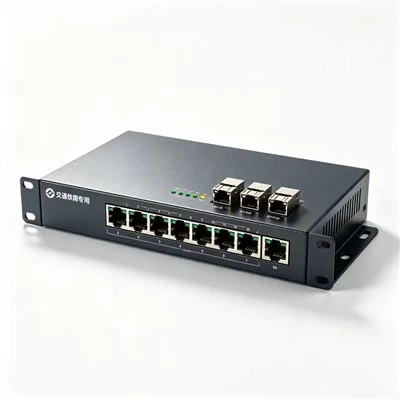
First, let’s set a baseline: what should a working port look like? On most enterprise switches (the kind we supply, with rugged metal chassis and status LEDs), a copper Ethernet port (RJ45) will glow solid green when it’s connected to an active device, negotiating a link at 10/100/1000 Mbps. If it’s 10 Gbps, it might be amber, depending on the model. A fiber port (SFP/SFP+) will usually glow solid green when there’s a valid optical signal and link up. Blinking green means data is transferring, red means a fault of some kind, and completely off means no link is detected at all. If it’s off, start here: did you plug it in at both ends? Sounds obvious, but I’ve seen it a hundred times—someone ran a cable to the switch port, forgot to plug the other end into the server, router, or access point, or they plugged it into a broken port on the other device. Last year, a 20-person marketing agency called me because a new video wall wasn’t working; turns out the IT intern had run the fiber cable to the switch port, but the other end was just dangling behind the wall, taped to a power cord. That’s the most common “oops” mistake, and it’s the first thing to rule out.
If both ends are plugged in, the next step is to check the cable itself. Ethernet cables don’t last forever, and a lot of people overlook the fact that cheap patch cords or damaged bulk cable will kill a link before it even starts. Let’s break this down for copper first: a standard Cat 5e cable can go up to 100 meters, but only if it’s made correctly. I’ve tested cables that were hand-crimped in a closet, where the wires were only inserted halfway into the RJ45 connector, so half the pins weren’t making contact. Even a good cable can be damaged if it’s been stepped on, chewed by rodents, or run over by a forklift in a warehouse. The most common test for a copper cable is to plug it into a known good port on the switch and see if that port lights up. If it works, your original port might be fine—swap the cable and move on. If not, grab a cable tester (we keep a few in every service van for this exact reason) to check for open circuits, crossed wires, or shorts. For fiber, it’s a bit trickier: fiber cables are super fragile, even tiny scratches on the end face of the SFP or the fiber itself can cause signal loss so high the switch doesn’t detect a link. If you have a spare SFP module, swap it out first—sometimes the SFP is dirty or faulty, not the port. Wipe the fiber end with a lint-free isopropyl alcohol pad (90%+ isopropyl, not the rubbing alcohol from the first aid kit) and try again. If that doesn’t work, a fiber light meter can check if there’s enough signal coming through; if not, the cable is bad.
Next, let’s talk about the port configuration. This is where a lot of people get tripped up, especially if they’re new to enterprise switches. The switch port isn’t just a physical socket—it’s a virtual interface that has to be enabled, configured for the right mode, and not blocked by network policies. For example, if you plug a device into a port that’s set to “down” in the switch config, the light will stay off even if everything else is working. How do you check that? If you have access to the switch’s command line (CLI), log in and run a simple show command: show interfaces status will show you all ports, their admin status (up/down), and protocol status. If the admin status is “down,” that means the port is disabled by the network admin. Maybe someone turned it off to do maintenance and forgot to turn it back on, or it was never enabled in the first place. Another common config issue is the port mode: if you set a port to trunk mode for VLANs, and the device you’re plugging in (like a desktop PC) expects access mode, it won’t form a link automatically. We see this a lot when network admins set up a new switch for VLAN segmentation but don’t adjust the ports for end devices. Also, check if the port is in a spanning tree blocked state—spanning tree is the protocol that prevents network loops, and it will temporarily block a port for 30-45 seconds when it comes up to make sure there’s no loop. If the light stays off longer than that, the port might be blocked due to a loop that was detected earlier.
Don’t forget about power! Wait, the switch is plugged in, right? That sounds ridiculous, but I’ve seen it. A switch might be connected to power, but maybe the power cord is loose, the PDU (power distribution unit) it’s plugged into is turned off, or the circuit breaker for the rack tripped. If the entire switch is dark, that’s a power issue, but sometimes individual ports can lose power? No, not on standard enterprise switches—all ports on a switch get power from the main unit. But if it’s a PoE (Power over Ethernet) switch, a PoE port can be disabled if the device plugged in draws too much power, or if PoE is turned off for that port. For example, if you plug a new IP camera into a PoE port that’s only supposed to support 15W, and the camera needs 25W, the switch will disable the port to prevent damage, and the light will go off. That’s a safety feature, not a fault, so check your PoE budget and the device’s power requirements. Last month, a school IT team called us panicking because half their classroom cameras went dark; the switch’s PoE budget was maxed out, and it disabled the ports for cameras that weren’t on the priority list. It took them 10 minutes to move a few cameras to a spare PoE port on another switch, and everything was back online.
Another culprit that’s easy to miss: environmental factors. Switches are built to be rugged, but they don’t like extreme conditions. If the switch is in a rack in a garage or a warehouse where temperatures get above 104°F (40°C) or below 32°F (0°C), the ports might stop working properly. Dust is also a big one—if your switch is in a dirty server room, dust can build up on the RJ45 contacts or the SFP ends, blocking the signal. I once visited a manufacturing plant where the switch was right next to a paint booth; the fumes had corroded the metal contacts on half the ports, and none of them worked. The fix was to clean all the ports and move the switch to a cleaner area, but that could have been avoided with a proper rack enclosure. Humidity is another issue—if the room is too humid, condensation can build up inside the switch, damaging the port circuitry. If you just moved the switch or exposed it to a dramatic temperature change, let it sit for a few hours to acclimate before turning it on.
Now, let’s talk about when it’s actually the switch’s fault. If you’ve checked all of the above: both ends are plugged in, cables and SFPs are working, port config is correct, power is good, environment is normal, and the light is still off, then it’s likely a faulty port. But before you throw the switch away, try a few more things: reboot the switch. Sometimes a glitch in the switch’s firmware will cause a port to go offline unexpectedly. If rebooting doesn’t work, swap the port with another one—most enterprise switches have multiple ports, so if you plug the same cable into a different port and it lights up, your original port is bad. That’s a common issue with switches, especially if they’re older: port circuitry can fail over time from power surges, physical damage from the rack, or just normal wear and tear. We see this all the time with switches that have been in use for 5+ years; one or two ports might fail, but the rest of the switch is still perfectly good, so swapping ports is a cheap fix instead of replacing the entire unit.
At the end of the day, most “switch port not lighting up” issues are simple, avoidable mistakes. I’ve spent 12 years troubleshooting, and 9 out of 10 times it’s a loose cable, a disabled port, a bad SFP, or a forgotten power cord. The key is to work through it systematically, don’t panic, and check the small things first before you start ordering new parts or ripping out the entire network. For the 1 in 10 cases where it is a faulty port or a more complex issue, we’re here to help. If you’re dealing with persistent switch port issues, whether it’s a single dark port or problems across your entire network, our team of network specialists can walk you through troubleshooting, provide replacement parts if needed, and help you optimize your switch setup for reliable performance. We work with businesses of all sizes, from small offices to large enterprises, to provide high-quality switches, on-site support, and remote troubleshooting to keep your network running smoothly. Don’t let a dark port bring your operations to a halt—reach out for expert guidance tailored to your network needs.
Edge Computing Power Controller References
- Cisco Systems. "Ethernet Link Status LED Behavior for Catalyst Switches." Technical Note, Cisco Support, 2023.
- IEEE 802.3-2022. "Standard for Ethernet." Institute of Electrical and Electronics Engineers, 2022.
- Fluke Networks. "Guide to Ethernet Cable Testing and Troubleshooting." Fluke Networks Whitepaper, 2024.
- Juniper Networks. "SFP and SFP+ Module Troubleshooting for QFX Series Switches." Technical Bulletin, Juniper Support, 2023.
Liaoning Yifang Wisdom Technology Group Co., Ltd.
Liaoning Yifang Wisdom Technology Group Co., Ltd. is one of the most professional network switch manufacturers and suppliers in China, also supports customized service. We warmly welcome you to wholesale the newest network switch in stock here from our factory. If you have any enquiry about quotation, please feel free to email us.
Address: Minmetals Corporation Building Yingkou Liaoning China
E-mail: LN-YF@hotmail.com
WebSite: https://www.yifangwisdom.com/
